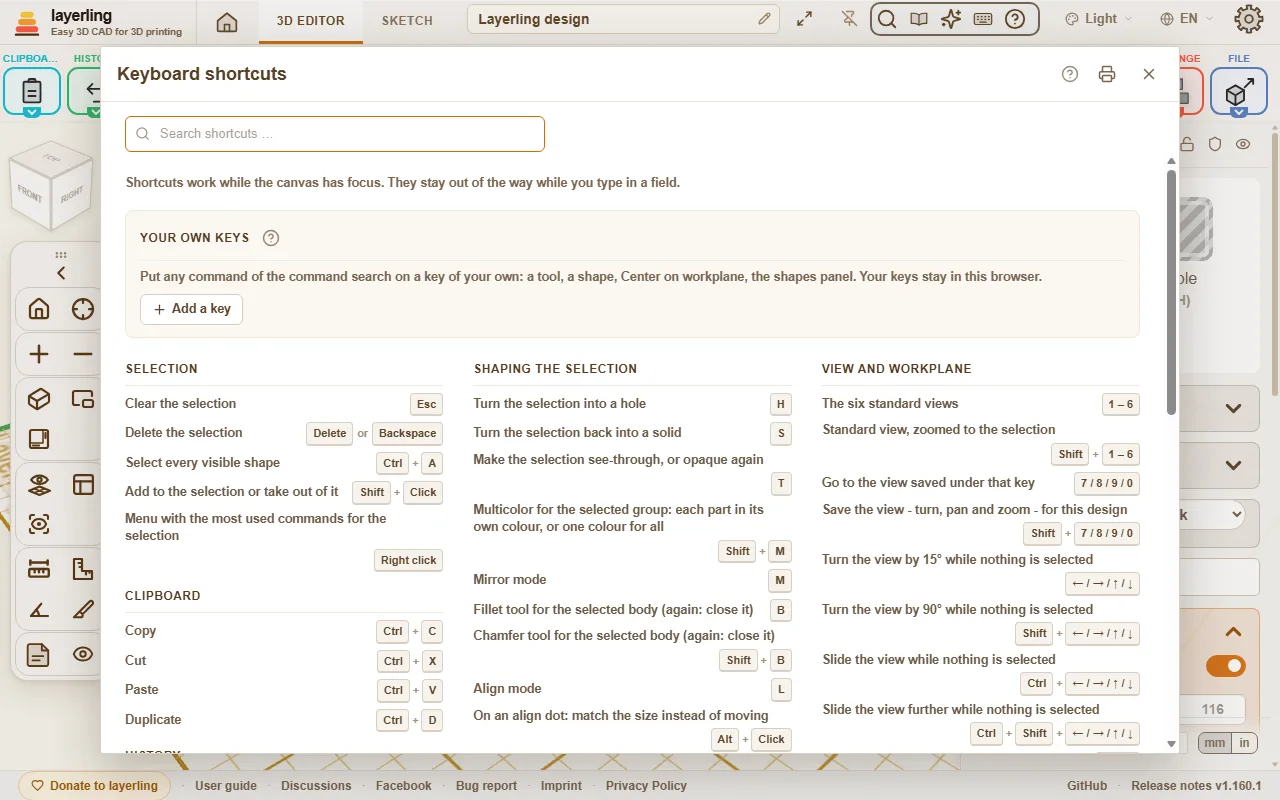
The shortcuts work as long as the workplane has the focus. While you type in a field they keep out of the way. On the Mac, Cmd applies wherever Ctrl is listed here. The keys carry the names on the keyboard of your language. A letter is the letter on your keyboard; on a keyboard of another script (Cyrillic, Greek, Arabic, Hebrew) the key in the place of the Latin letter counts.
In the editor, 「キーボードショートカット」 in the 「ヘルプ」 area opens the same list as a window. The printer button in the window (「印刷またはPDFで保存」) prints the list on its own, black on white, the whole list on one side of an A4 or Letter sheet in three columns, to keep at hand as a quick reference; the print dialog of the browser also offers to save it as a PDF.
The box at the top of the window searches the list: it keeps only the shortcuts whose sentence, group or keys contain every word you type, so "fillet" or "ctrl+z" leaves just those rows. Capital letters and accents do not matter, and a single letter or digit finds that key and the words that start with it. The X at the end of the box empties it; with the box empty the whole list is back. The printer button prints what the window shows, so after a search it prints only the shortcuts found.
The keyboard shortcuts window in the editor.
Command search
Can't find a tool? Press Ctrl+K or click the magnifying glass in the 「ヘルプ」 area, then type what you are looking for: a tool ("fillet", "mirror"), a shape ("cylinder") or a command ("export", "undo"). Move with the arrow keys and press Enter, or click the entry.
The search understands the English and the German word alike and ignores capital letters and umlauts: "aushoehlen" finds 「中空にする」. The search works in every script: a name is found as it is shown in the language of the interface ("円柱" in Japanese). Full-width and half-width letters, katakana and hiragana, and accents count as the same.
Every entry shows the keys that do the same and the group of the ribbon it lives in, so you learn where it is.
Entries that are greyed out cannot run right now, mostly because nothing is selected. They stay in the list so the search still tells you where the tool is.
The guide you are reading has a search box too, at the top of every page: type a word or two and it lists the sections that contain all of them, with the matching words marked. Click one, or press Enter for the first, to jump straight there. The page it opens marks every place your words appear and scrolls to the first one in that section; Esc or a click on a mark clears them. Words in quotation marks are searched as an exact phrase: "circular arc" lists only the sections where these words stand next to each other in this order, and a single word in quotation marks is found only as a whole word, not as part of a longer one.
A shape's name adds that shape to the workplane, just like clicking it in the shapes menu.
With an empty field the search lists the commands you used last at the top.
The name of a body in your design finds that body and selects it, which helps in a design with many parts. Bodies only appear once you type.
A custom shape you saved is found by its name too, once you type, and a click puts it into the design as in the shapes panel.
It works in sketch mode as well, with the sketch tools.
Your own keys
Any command of the command search can go on a key of your own: a tool you use all the time, a shape, 「作業平面の中央に置く」 or 「シェイプパネルを開く」.
Open 「キーボードショートカット」 and click 「ショートカットを追加」 under 「自分のショートカット」 at the top of the window.
Type a few letters of the command and click it, or press Enter for the first one.
Press the key you want, alone or with Ctrl, Alt or Shift. Letters, digits and F1 to F12 can take a command.
A key the editor already uses, one the browser keeps for itself (such as Ctrl+W) or one of your own keys is refused, and the window says what it does. Click a key in the list to change it, the X next to it to remove it, or 「自分のショートカットをすべて外す」 to start over.
The key runs the command just as the command search does. If it cannot run right now, mostly because nothing is selected, the status bar says so.
Your keys show next to their commands in the command search and on the printed list.
They stay in this browser, like the theme. A key for a sketch tool works in sketch mode, a key for the 3D editor outside it.
While you type in a field, your keys keep out of the way like all the others.
Interactive Help
Cannot find where to read about a button or a field? Let the program take you there. Click the question mark in the 「ヘルプ」 area, or press Shift+F1. The pointer turns into a question mark, and whatever lies under it is outlined.
Click a button, a field, a switch, a handle, a group of the ribbon or the title bar of a window. It does not do what it normally does. A small window opens instead, with the name of the element, a short summary of the part of this guide that is about it, up to two more places that mention it, and 「ガイドで開く」.
The help is about the element you pointed at, not about the whole window around it. An element without a name of its own uses the nearest one around it; inside a window it falls back on that window's question mark.
「ガイドで開く」 opens the guide at that section in a new tab. There the section is outlined in colour, from its heading to its end, so you see where it starts and stops.
If the guide says nothing about the element, the window says so and offers 「ガイドを検索」.
Esc, or the question mark again, leaves the mode. On a touch screen there is no hover: a tap on an element opens the window straight away.
The window moves by its title bar like the other windows. The program finds the section by the name of the element - the label on a button, the name of a field - because this guide writes every button as it is called in the program. It looks it up in the same search as the box at the top of each guide page, in the language you are using, and runs entirely in your browser.
選択
Esc
選択を解除
Delete または Backspace
選択を削除
Delete または Backspace
With Delete face open: remove the picked faces, not the body